


Keeping guides and staff organized is one of the most important parts of running an outdoor activity business. Between changing trip schedules, staff assignments, and last-minute updates, it can be easy for important details to get lost in the shuffle.
That’s why we’re excited to introduce Google Calendar Integration in The Flybook.
With this new feature, assigned staff can sync their scheduled trips directly to their personal Google Calendar. That means guides and staff can see their upcoming work alongside everything else on their calendar, without needing to log in to Flybook just to check their schedule.
For operators using an activity booking software to manage trips, reservations, and staff assignments, it’s one more way to keep everyone on the same page.
Here’s an instructional video showing what the integration looks like when implemented:
What Does the Google Calendar Integration Do?
Once the Google Calendar Integration is enabled, any time a staff member is assigned to an activity in The Flybook, the event will automatically appear on their personal Google Calendar.
- The Activity Name
- A link back to the trip on their My Calendar page in Flybook
And because schedules can change quickly in the outdoor industry, the calendar stays up to date. If the trip start time changes or staff assignments are updated, those changes will automatically sync to the connected calendar.
This helps turn Flybook from simply a reservation management software into a more connected part of your team’s day-to-day workflow.
How to Connect Google Calendar to The Flybook
Getting started is simple. Staff members will need the appropriate permissions and a connected Google account before they can begin syncing their assignments.
1. Check Staff Permissions
Before connecting a calendar, staff members must have:
-
- Flybook login access
- A Staff profile tied to their Flybook user login
- The “Update My Account” permission enabled
These permissions allow the staff member to connect their account and manage their calendar settings.
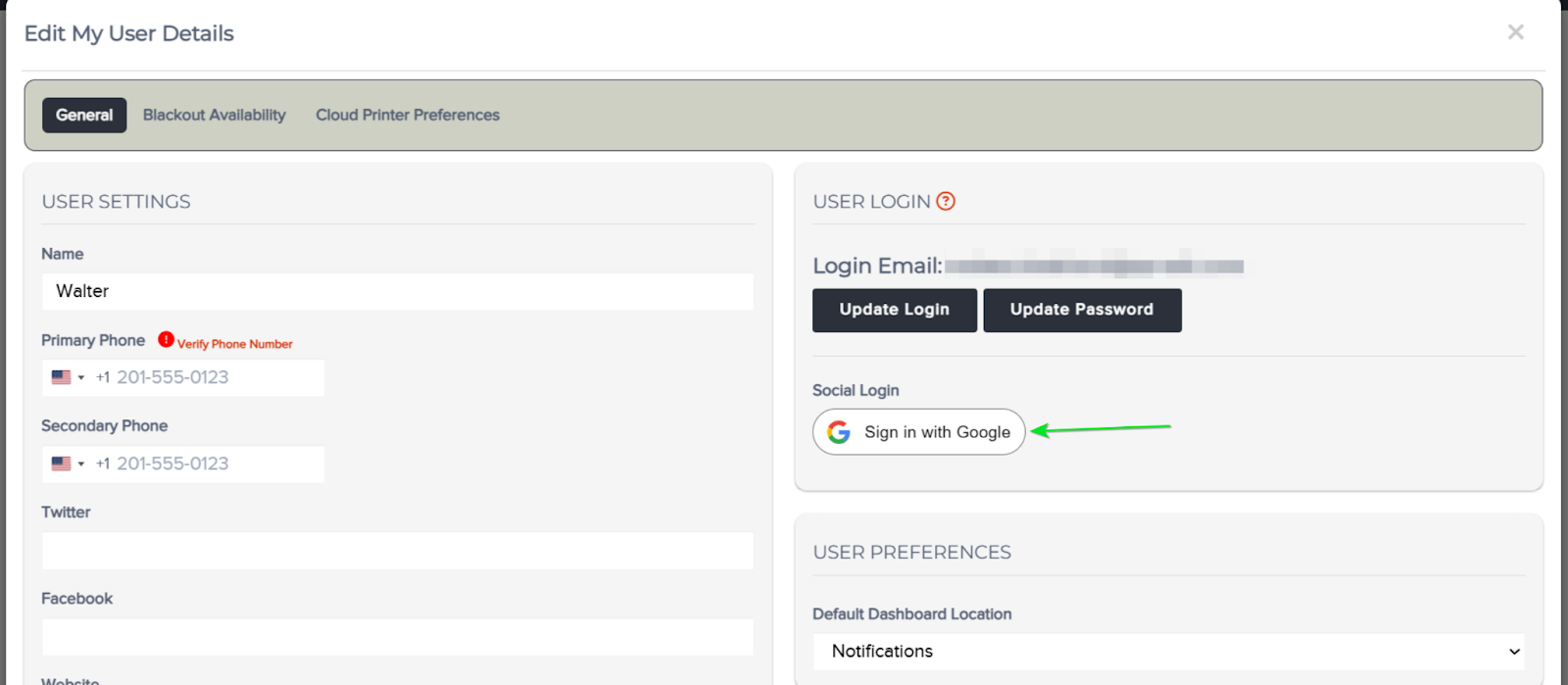
2. Enable Google Login
From My User Settings, enable “Sign in with Google.”
This connects the staff member’s Flybook login with their Google account and prepares the account for calendar synchronization.
3. Connect Your Google Calendar
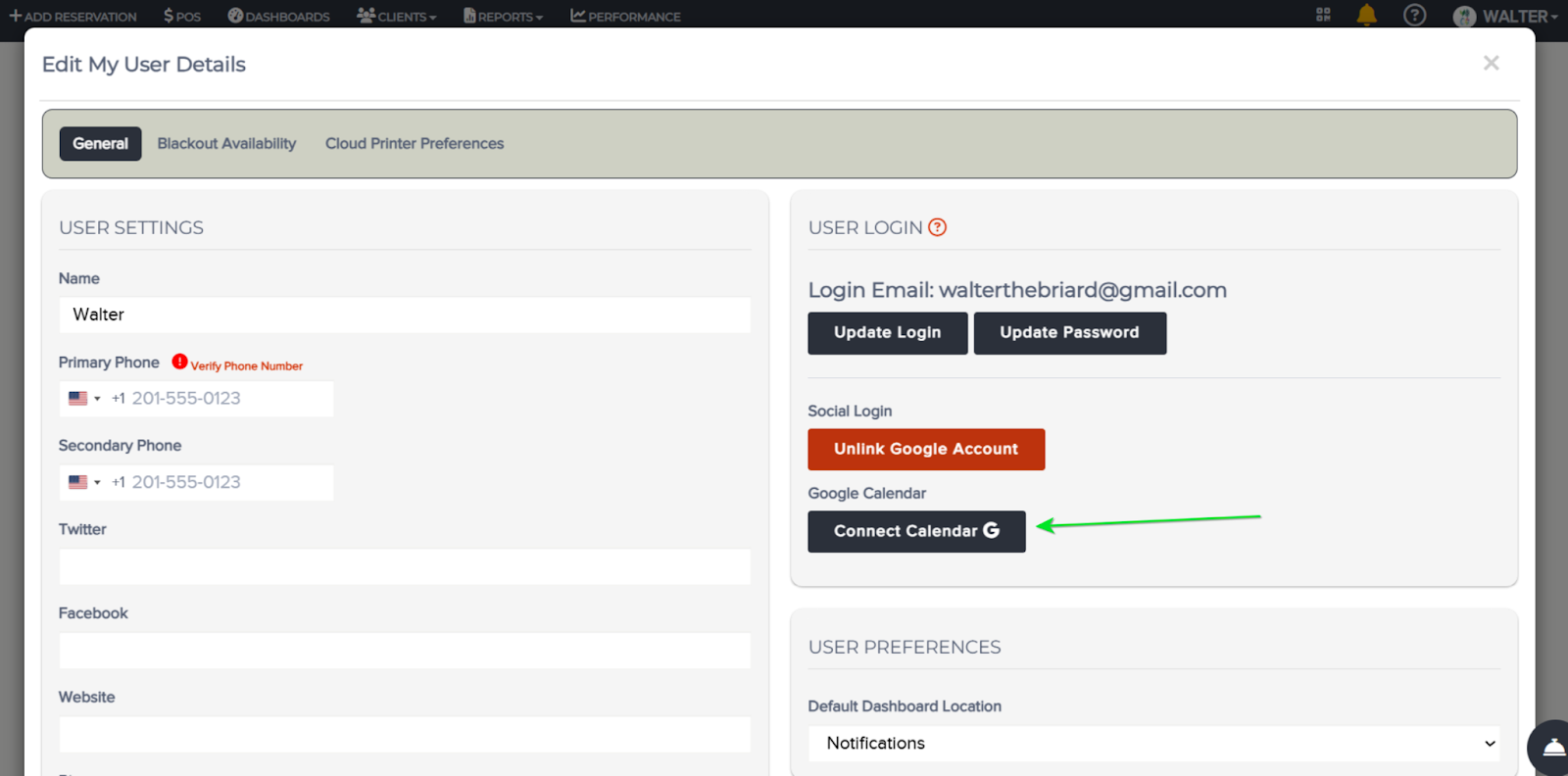
Once Google login is enabled, navigate to your User Login area.
You’ll see a new “Connect Calendar” button.
Click the button to connect your Google Calendar to The Flybook.
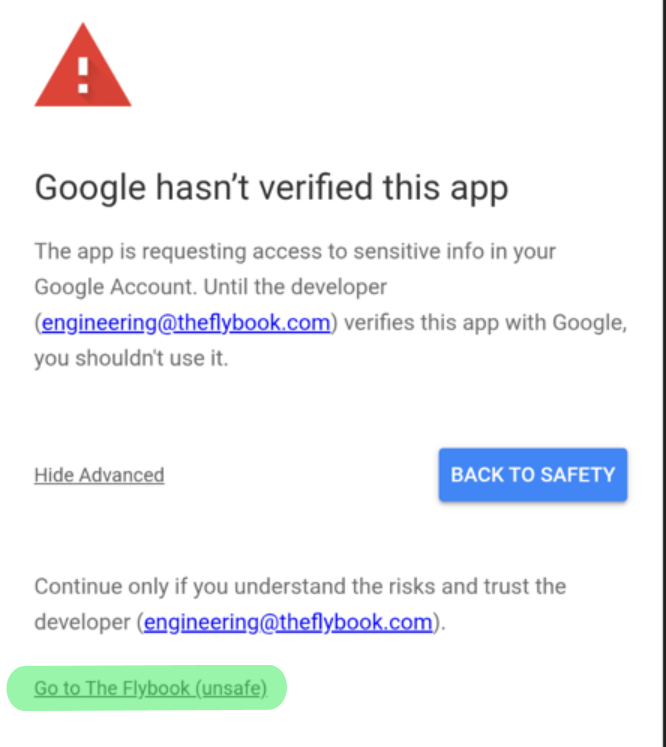
You may see a Google verification warning during the connection process. If you do, click “Advanced” and proceed with the connection.
4. Sync Existing Assignments
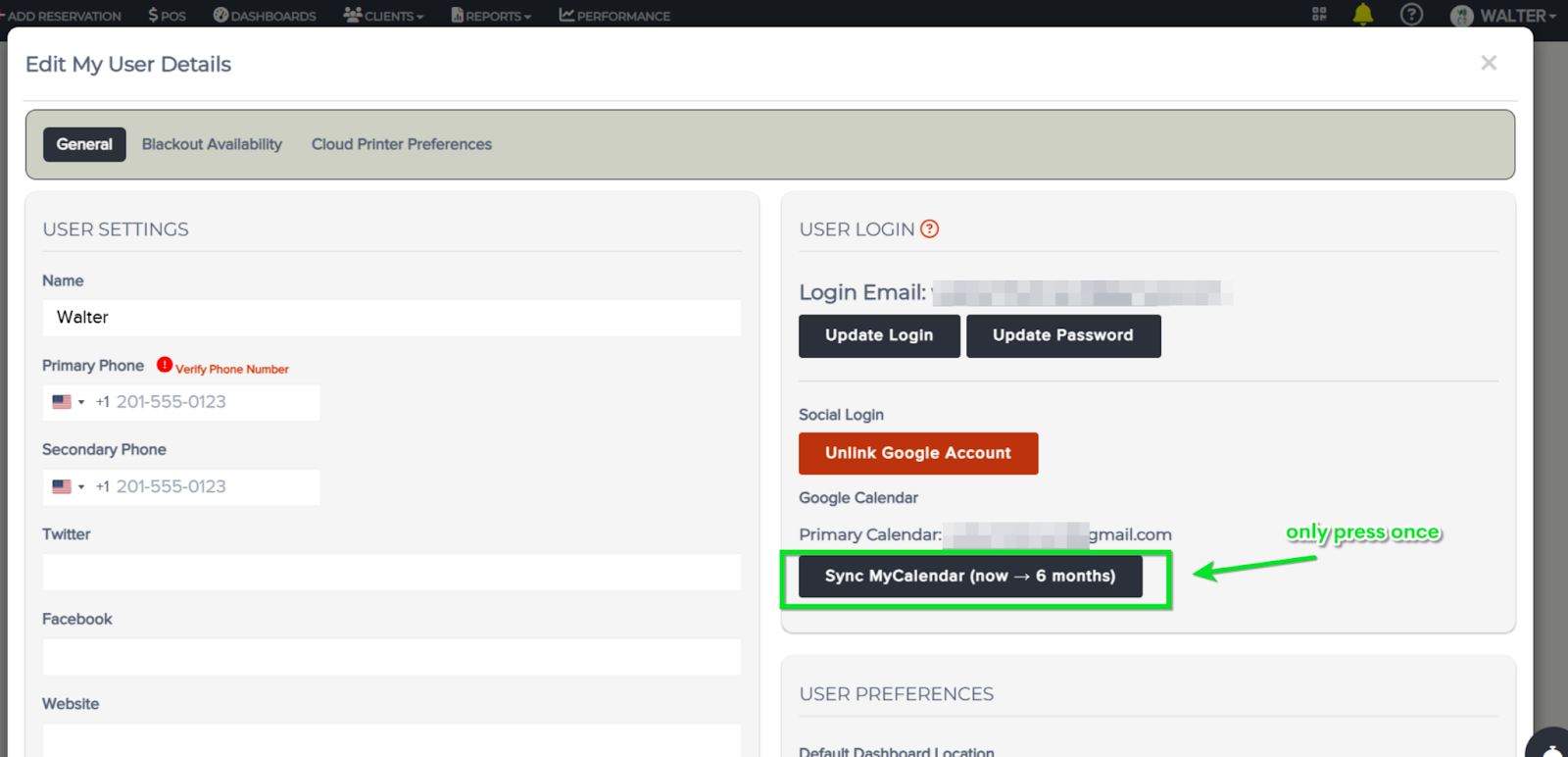
After your calendar is connected, click “Sync MyCalendar” to add your current assignments to your Google Calendar.
Important: Only click “Sync MyCalendar” once.
After your existing assignments have been added, any future assignments and schedule updates will sync automatically.
Why Google Calendar Integration Matters for Outdoor Activity Businesses
For operators using booking software for outdoor activities, managing reservations is only one part of the equation. Those reservations also need to translate into clear schedules for guides, drivers, instructors, and other staff.
When schedules live in one system and personal calendars live somewhere else, staff can end up spending unnecessary time checking multiple places for the information they need.
Flybook’s Google Calendar Integration helps close that gap.
Instead of asking guides to regularly log in to check their upcoming assignments, scheduled activities can appear directly on the calendar they already use every day.
That means:
- Less time checking schedules — Staff can see upcoming assignments without repeatedly logging into Flybook.
- Better visibility — Trip assignments appear alongside other commitments on a personal calendar.
- Fewer missed updates — Changes to activity times or staff assignments are automatically reflected.
- A smoother staff experience — Guides can spend less time managing their schedules and more time preparing for the guest experience.
For businesses looking for activity reservation software that supports both the customer booking experience and the operational side of running trips, integrations like this can make a meaningful difference.
Connect Your Booking Tools and Your Team
Modern outdoor businesses rely on more than one piece of technology. Your reservation system, payment tools, calendars, marketing platforms, and other systems all play a role in keeping the business moving.
That’s why integrations matter.
The Flybook is designed to work alongside the tools operators already use, helping create a more connected workflow across the business. You can explore The Flybook’s available integrations to see how different tools can work together.
Whether you’re managing guided trips, rentals, activities, lodging, or other reservations, the goal is the same: spend less time jumping between systems and more time running the business.
A More Connected Way to Manage Staff Schedules
Good tour operator booking software should do more than accept reservations. It should help operators manage what happens after the booking is made. Including making sure the right staff members know where they need to be and when.
This Google Calendar Integration gives guides and staff a simpler way to stay connected to their schedules while keeping Flybook at the center of the reservation and activity management process.
It’s a small change that can remove a surprisingly common source of friction: having to check one more system just to know what’s on your schedule.
Ready to Connect Google Calendar?
If you’re already using Flybook, follow the steps above to connect your Google Calendar and start syncing your assignments.